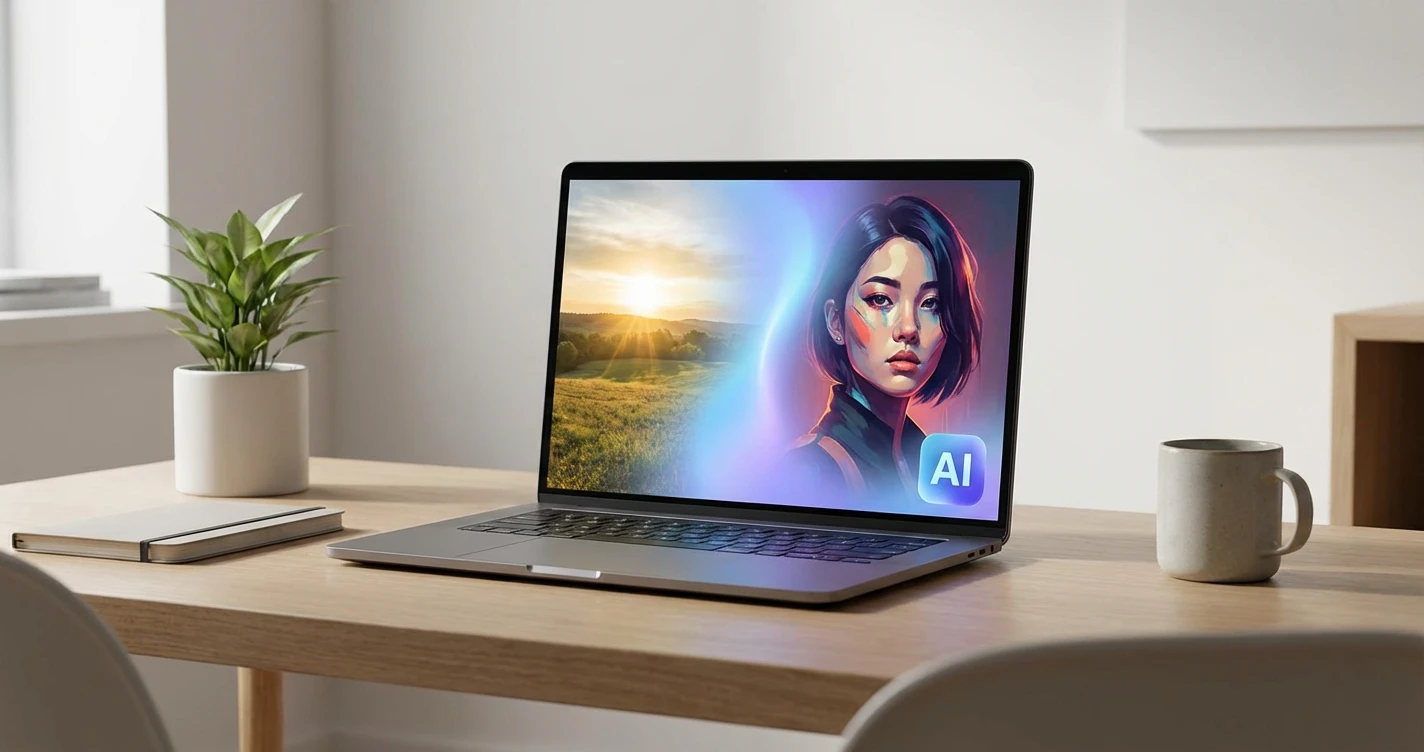
How to Combine Two Photos with AI in Photoshop
Learn how to combine two photos with AI in Photoshop using layers, masks, Harmonize, and Generative Fill, with examples, internal resources, and a faster online alternative.
Photoshop can combine two photos with AI, but the best workflow depends on what you are trying to merge. If you want to place a person, product, pet, or object from one photo into another scene, Photoshop gives you strong control through layers, selections, masks, Harmonize, and Generative Fill. That control is useful for designers, but it also means you need to manage the canvas, isolate the subject, fix edges, match lighting, and export the final composite yourself. If you only want to merge two images quickly, the Combine Two Photos with AI tool is usually faster. This guide explains the Photoshop workflow, when AI helps, where manual editing still matters, and when an online AI Image Combiner is the simpler option.
Quick answer: can Photoshop combine two photos with AI?
Yes. Photoshop can help combine two photos with AI-assisted features such as Harmonize and Generative Fill, but it is still a layer-based editor. You usually start by placing both photos in one file, isolate the subject or object you want to keep, and then use AI features to blend the result. If your goal is a fast social post, product mockup, couple photo, or concept image, Combine Two Photos with AI removes most of that setup. If your goal is a professional PSD with full manual control, Photoshop is the stronger workspace.
Step-by-step Photoshop workflow
Open the background image first, then place the second image as a new layer. Resize and position the second photo so the subject sits naturally in the final composition. If the second photo includes an unwanted background, use a selection tool, Remove Background, or a layer mask to isolate the part you want to keep. This setup matters because Photoshop AI needs clean visual context from both the inserted subject and the target background. After that, use Harmonize or Generative Fill to reduce the obvious pasted-on look.
Where Harmonize and Generative Fill help
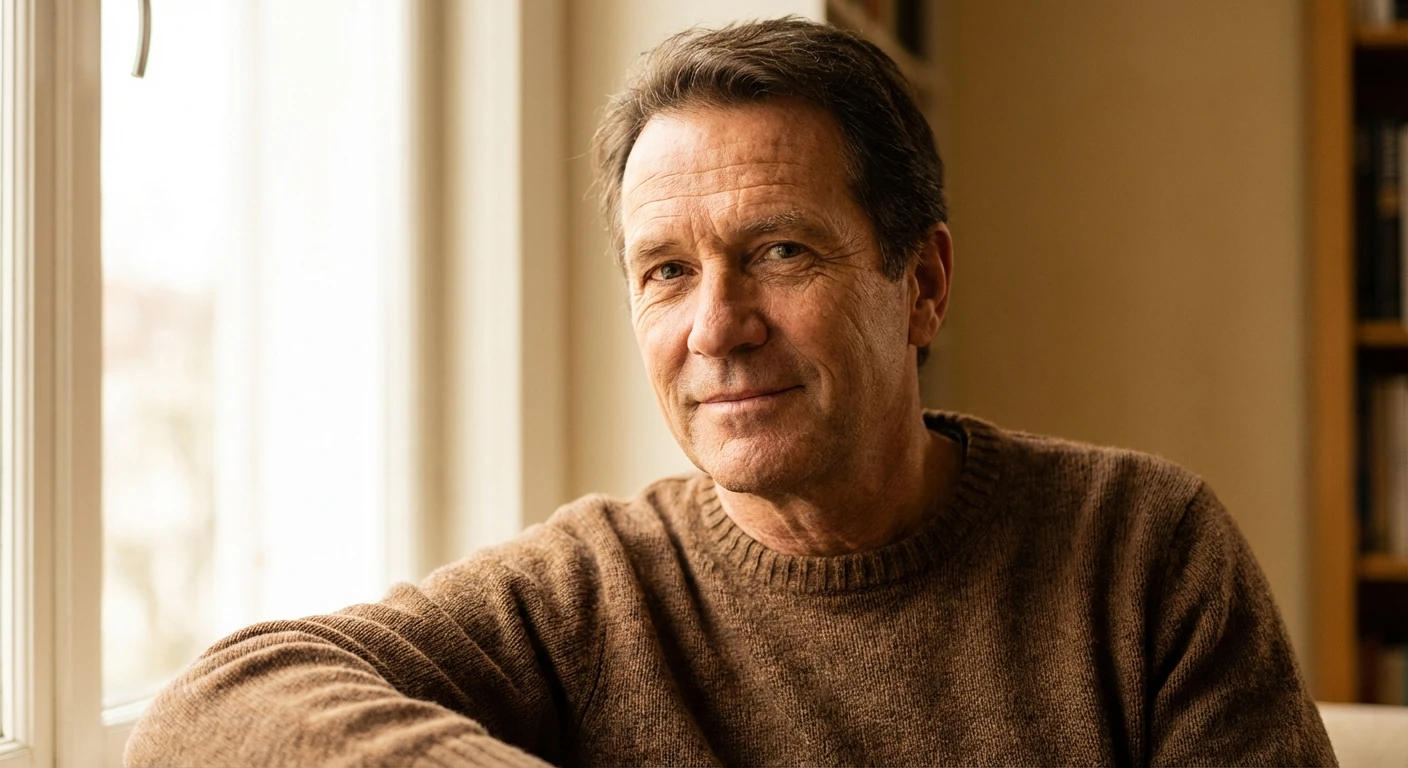
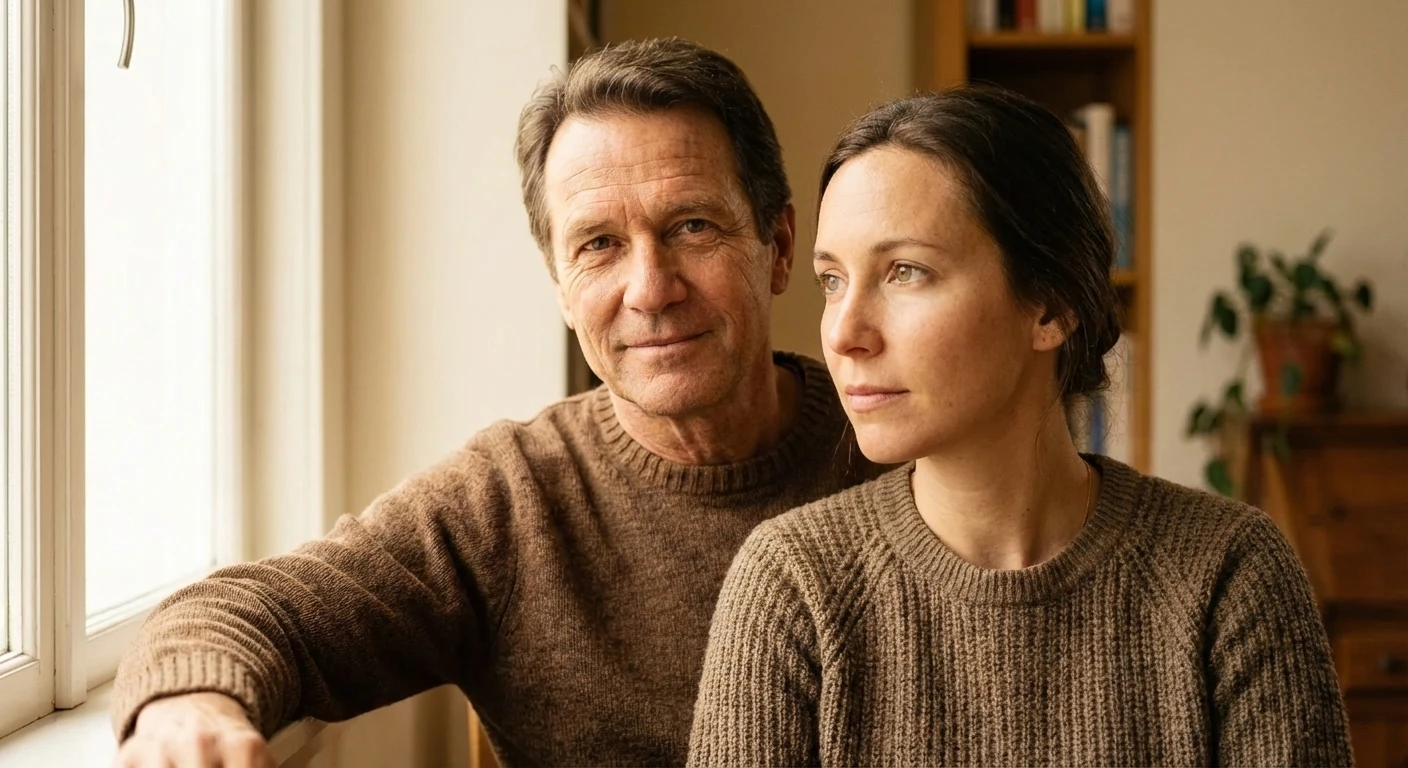
For a subject placed into a new scene, Adobe documents Harmonize as a Photoshop feature for blending a subject with its background by adjusting color, lighting, tone, and shadows. Use it after the subject is roughly positioned. Generative Fill is better for selected cleanup areas: missing edges, awkward seams, background extension, or small distractions around the composite. Keep selections focused and review each variation carefully. AI can save time, but it may also add unexpected detail, soften high-resolution areas, or change small objects if the selection is too broad.
When Auto-Blend Layers is the wrong tool
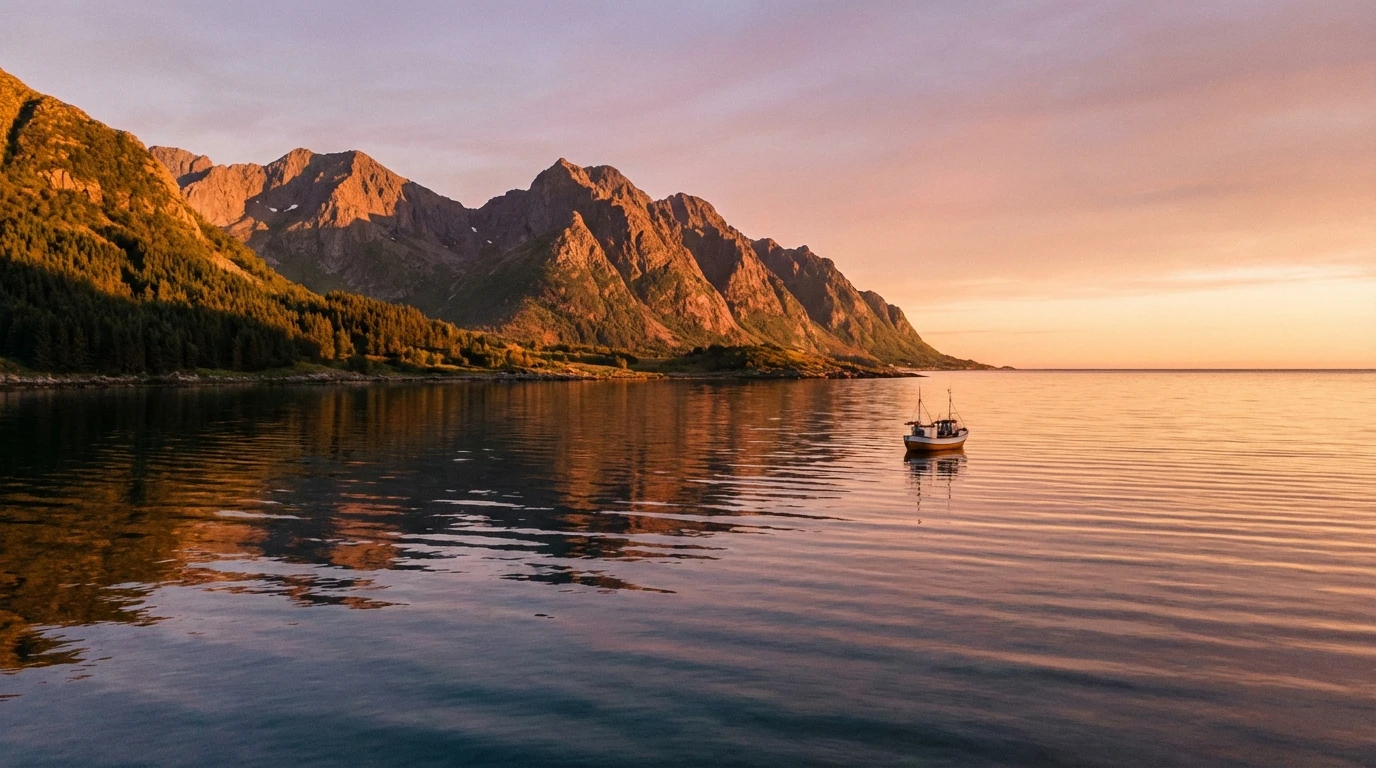
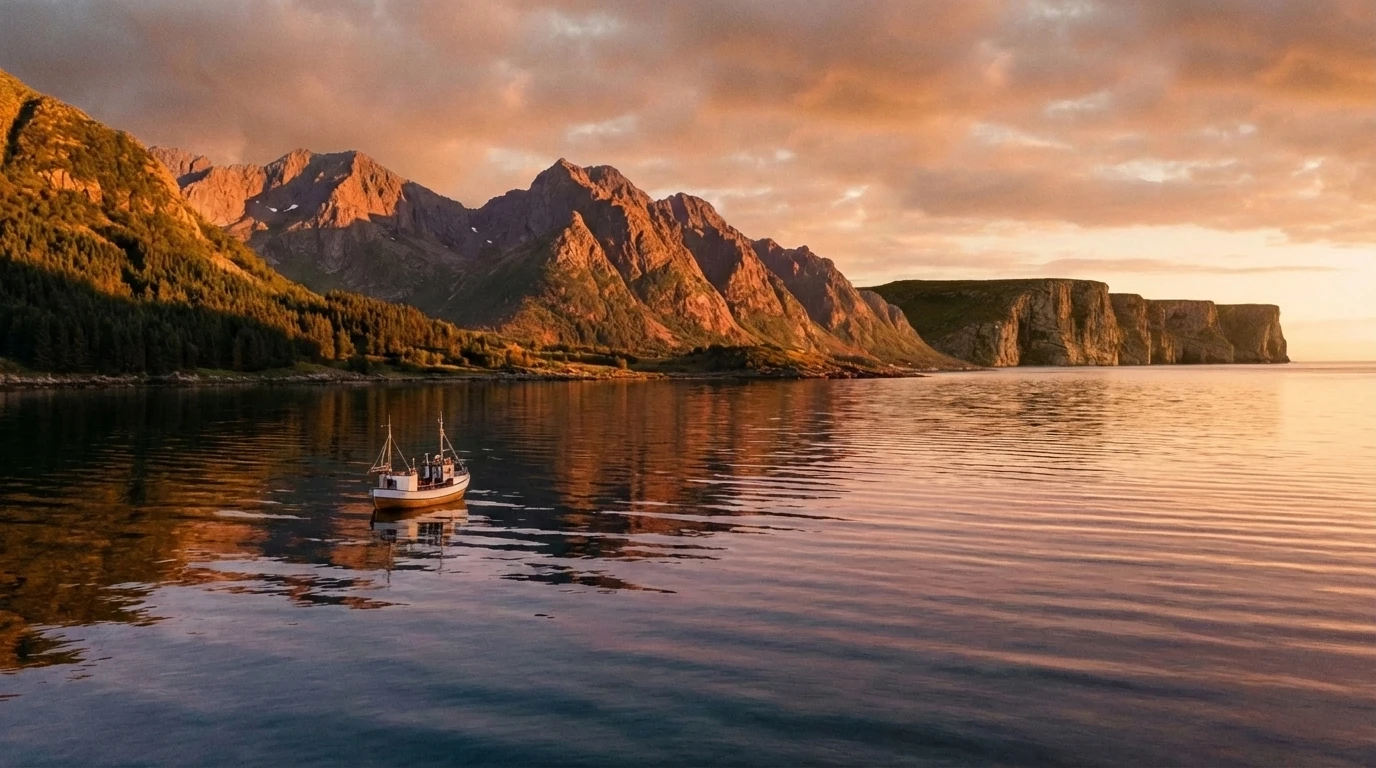
Auto-Blend Layers is useful when the images already belong to the same scene, such as panoramas, exposure stacks, or focus stacks. It is usually not the main answer for combining unrelated images, like adding a product photo to a lifestyle background or putting one person into another photo. For unrelated photos, layers, masks, Harmonize, and Generative Fill are more relevant. For non-Photoshop workflows, Photo Collage Maker is better for layout-style combinations, while Wedding Photo Combiner is more specific to romantic or ceremony-style composites.
Photoshop vs AI Image Combiner
| Need | Photoshop | AI Image Combiner | | --- | --- | --- | | Layer-level control | Best choice | Limited manual control | | Fast two-photo merge | More setup | Best choice | | Masks and selections | Required for good results | Not required | | PSD handoff | Supported | Not the goal | | Social or marketing drafts | Slower but precise | Faster and simpler | | Same-scene panorama/focus blend | Auto-Blend Layers can help | Not the right tool |
A useful rule: choose Photoshop when you need a controlled editing file; choose AI Image Combiner when you need a finished merged image quickly.
SEO-safe positioning and brand boundary
This article should not imply any Adobe affiliation. Photoshop is an Adobe product, and this page is only a practical workflow comparison for users who are deciding whether to use Photoshop or a simpler online tool. The safest CTA is not “replace Photoshop,” but “try a faster route when you do not need layers, masks, or PSD files.” For adjacent intent, users can also explore AI Hairstyle Changer for portrait edits or browse the AI Image Combiner blog for more image-combining workflows.
Summary
The short answer is yes: you can combine two photos with AI in Photoshop by combining traditional layers and masks with newer AI-assisted tools such as Harmonize and Generative Fill. The tradeoff is complexity. Photoshop gives you more control, but it still expects you to understand selections, layer order, subject isolation, and cleanup. If you only need a natural-looking merged image and do not want to edit manually, Combine Two Photos with AI is the more direct path. Use Photoshop for professional control; use AI Image Combiner when speed, simplicity, and web-based output matter more than detailed layer-by-layer editing.
Frequently Asked Questions
Can Photoshop combine two photos with AI?
Yes. Photoshop can help combine two photos with AI-assisted features such as Harmonize and Generative Fill, but users still usually need layers, selections, masks, and manual cleanup.
What is the best Photoshop AI tool for blending two images?
Use Harmonize when you need a subject to match a new background. Use Generative Fill when you need to fill gaps, extend a background, or clean selected areas around the composite.
Is Auto-Blend Layers the same as AI photo combining?
No. Auto-Blend Layers is mostly for related shots of the same scene, such as panoramas, focus stacking, or exposure blending. It is not usually the best tool for unrelated creative composites.
Why does my Photoshop composite look fake?
Most fake-looking composites come from mismatched lighting, shadows, scale, perspective, or edge masking. AI can help, but the source photos still need compatible angles and enough detail for a believable result.
What is the easiest way to combine two photos without Photoshop?
Use Combine Two Photos with AI. Upload both images, describe the scene you want, generate options, and download the best result without managing layers, masks, selections, or PSD files.
Is AI Image Combiner an Adobe or Photoshop product?
No. AI Image Combiner is an independent online tool. Photoshop is an Adobe product, and this guide only explains a workflow comparison for users deciding which route is easier.